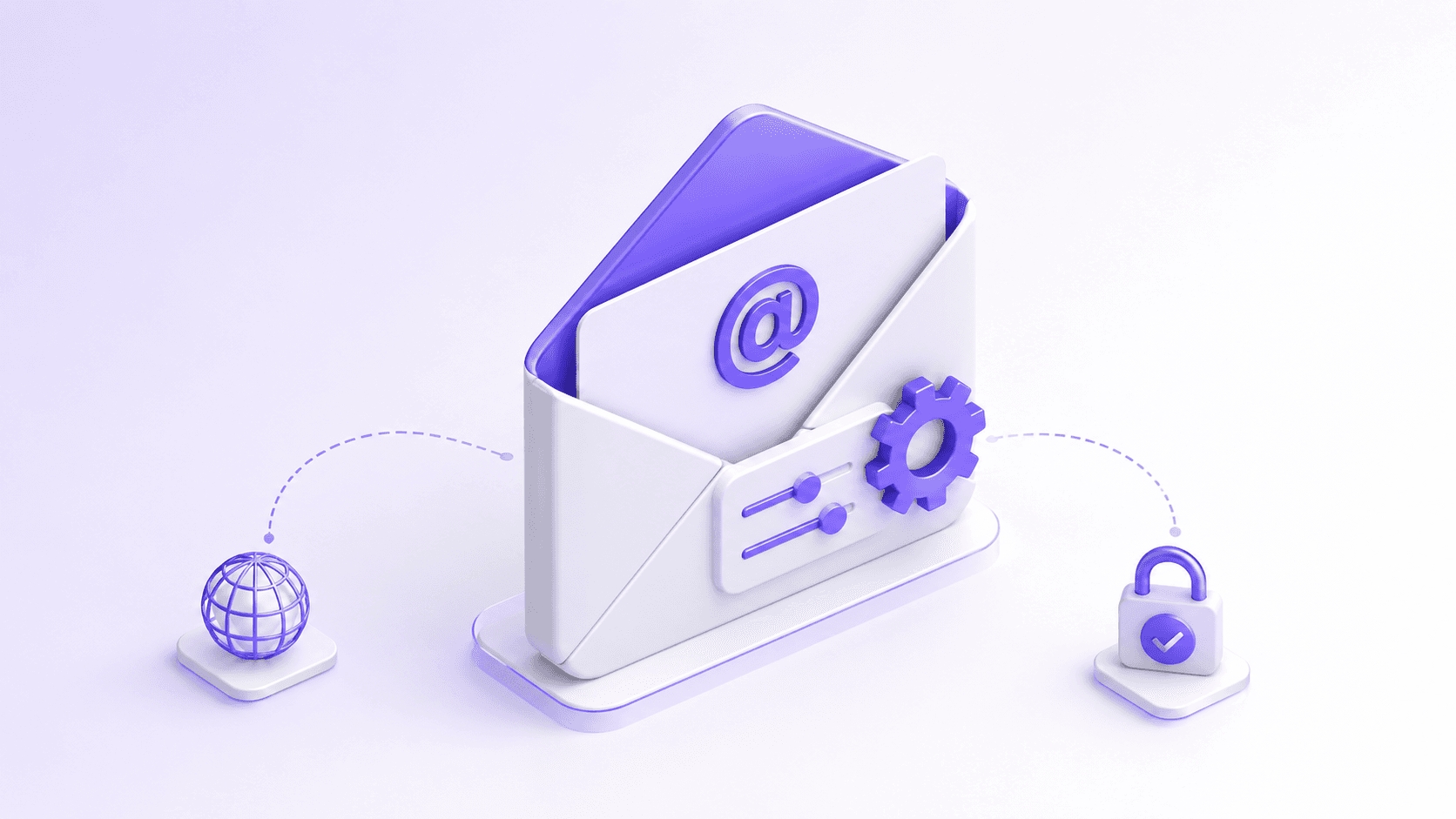
Email on your own domain — you@yourcompany.com instead of a generic Gmail address — is one of the cheapest decisions that changes how a customer reads you. If your site runs on hosting with cPanel, creating and managing those accounts is straightforward. This guide covers how to set up business email in cPanel, configure it on desktop and phone, and avoid the one mistake that quietly stops messages from arriving.
Why email on your own domain matters more than it looks
Email is where deals close, quotes go out and customers get answered. When that email carries your domain, every message reinforces your name and reads like an established company. A free generic address does the opposite at exactly the wrong moment — the one where someone is deciding whether to trust you with money. The difference costs nothing extra; it costs setting it up correctly once.
Creating an email account in cPanel
The process is short:
- Log in to cPanel at yourdomain.com/cpanel with the username and password your hosting provider gave you.
- Find the Email section and open Email Accounts.
- Click Create, then set the account name, the password and the mailbox storage limit.
That gives you an address ready to send and receive. What is left is deciding where you will read it.
Three ways to read your mail
Webmail. The fastest route: go to yourdomain.com/webmail, enter the full address and password, and read from any browser without installing anything. Useful when you are on someone else’s machine.
On your computer (Outlook, Apple Mail). Connects the account to a desktop client so it is always in front of you. This is where the IMAP-or-POP decision comes in, along with SSL.
On your phone (iOS and Android). Add the account in the phone’s mail app using the same server settings. It is how most people end up answering, so it is worth getting right.
IMAP or POP, and why you almost always want IMAP
With IMAP the mail lives on the server and syncs across every device: what you read on the laptop shows as read on the phone. With POP messages get downloaded to one machine and can disappear from the rest. For a business that checks mail from more than one place, IMAP is the right answer nearly every time.
The detail that trips everyone: SSL and ports
Always use the SSL/TLS (secure) connection. Do not invent the server names and port numbers — cPanel hands you the exact ones under Email Accounts, in the Connect Devices panel for each account. The most common failure is pairing SSL ports with the non-SSL setting: mail stops sending or receiving and looks broken when it is only misconfigured. Copy what cPanel shows, and keep the secure setting consistent across every field.
In short
Setting up business email in cPanel is simple: create the account, pick how you will read it (webmail, desktop or phone), choose IMAP so everything stays in sync, and configure SSL with the exact server details. Done properly, your company reads as more serious and no important message ever goes missing.
We set up and operate business email on your own domain — accounts, configuration on every device and reliable delivery, without you touching a single server setting. It comes with our managed hosting, or you can build your project in minutes.
We do not just write about this. We build it and we run it.
Stores, integrations, websites and intelligence already in production. Serving North America and LATAM since 2008.