A customer looks up your business on WhatsApp, types the obvious name, and someone answers. Once usernames go live in your country, that someone may not be you.
Get your @ and your sign ready in a minute
- An @ in the format WhatsApp accepts
- Links to copy, with your number and your @
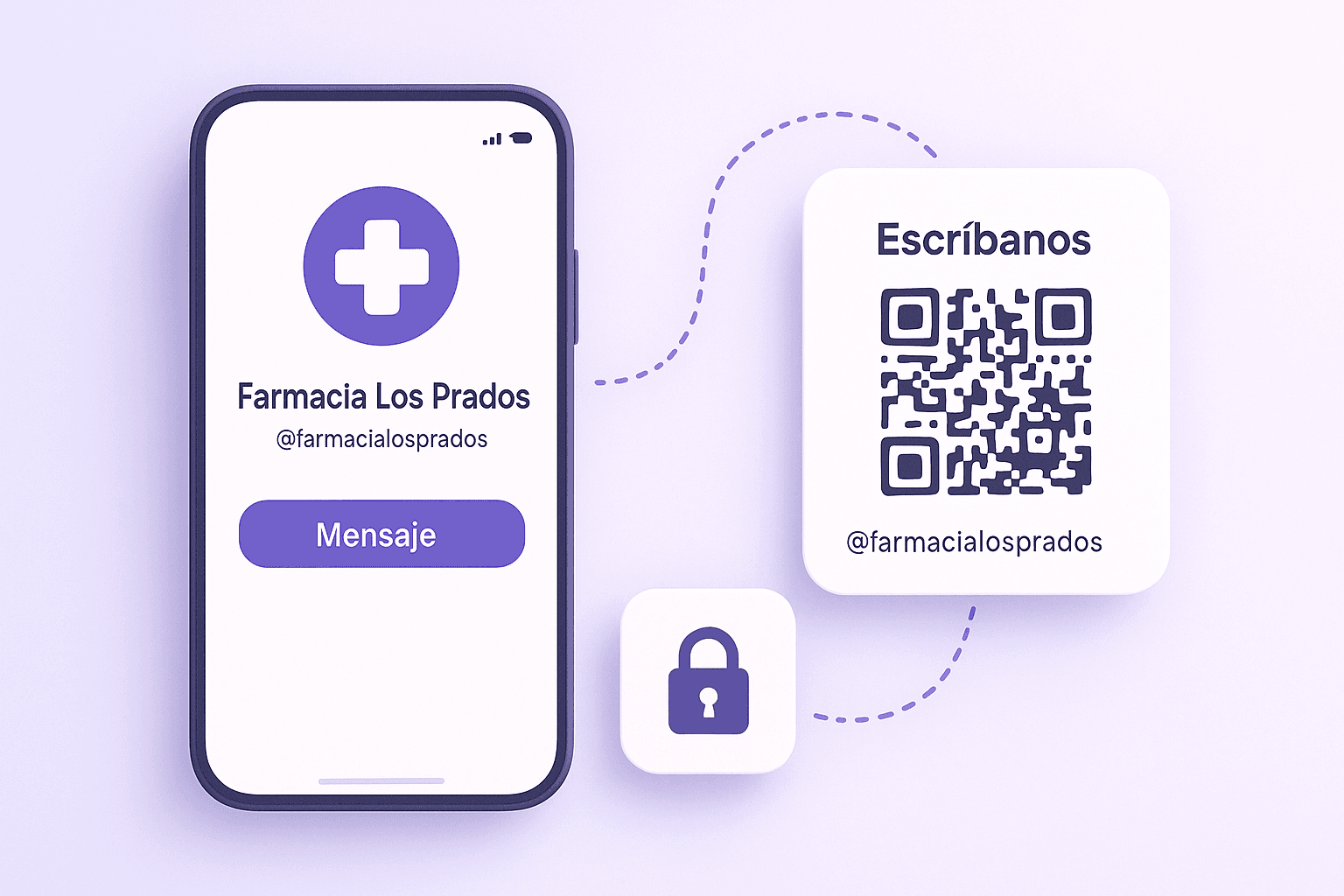
- A counter sign with a QR code, PDF ready to print
How it can happen · Thursday, 4:12 pm
The pharmacy never saw this chat
The customer typed the obvious name for the business. Someone else had reserved that @. The next morning they show up at the counter with a receipt for an account that isn't the pharmacy's.
What changed
On June 29, 2026, WhatsApp opened usernames: an @ handle, like on Instagram, so people can message you without your phone number. They're rolling out country by country, and you can reserve one in the meantime.
The rule that matters is in WhatsApp's official business guide: usernames are first come, first served. There's no business directory either. Customers have to type the exact name. If that name belongs to someone else, the message goes to someone else.
Why waiting is a bad idea
Meta holds names for well-known brands, governments and public figures on its own. Your business isn't on that list. In the first week, TechCrunch found lookalikes of India's prime minister and the country's central bank still up for grabs, and India's government asked WhatsApp to pause the rollout over fraud risk.
An @ with your business name, your logo as its picture, and a request for a deposit "to hold the order" is the whole scam. Reserving the name doesn't stop everything, but it takes away the most convincing piece.
How to reserve it: four screens
1Update the app
WhatsApp BusinessUpdatePhone only. Not available on Web or desktop.
2Business profile
BusinessLos PradosUsernameHours8am–9pm3Reserve username
Usernames aren't active in your area yet. Reserve yours now.
Reserve username4Type it and reserve
@lospradospharmacyReserveReserved. WhatsApp will notify you when it's active.
If you don't see the option, update the app, close it and open it again. If it's still not there, the feature hasn't reached your account yet. Two things before you choose: each number gets one username (two numbers, two names), and changes are limited. The name you give up becomes available to anyone.
What about your Instagram handle?
This is where almost everyone gets stuck. It happened to us. When we went to reserve ours, WhatsApp Business wouldn't let us use zagirova. On Instagram that handle belongs to another account, and WhatsApp was holding it for them. All we got was "This username is not available." Pick your case:
Your Instagram handle is…
Don't wait for it. Pick a variation today
- 1WhatsApp is holding that name for the other Instagram account. You'll see “This username is not available”.
- 2Pick a short variation that's easy to say out loud. The tool below suggests three.
- 3Use that same variation everywhere: sign, website, email.
The hold doesn't last forever. When it ends, the name goes to whoever claims it first, and that won't necessarily be you.
Get your @ and your sign ready
WhatsApp's two guides don't agree. The reservation guide allows 3 to 35 characters, including periods and underscores. The guide to creating a business username says up to 25, letters and numbers only. This tool uses the stricter rule, which works under both. That's why a name like mybusiness.com doesn't pass. That's for the best anyway: it looks like a web address, and customers end up typing it into a browser.
What the tool can't tell you is whether the name is free. WhatsApp doesn't allow checking from outside the app: a made-up name and a taken one respond the same way. You'll find out when you tap Reserve.
Your WhatsApp username, ready in a minute
Type your business name. We prepare an @ in the right format, the links and a QR sign to print. Whether it's free, only WhatsApp can confirm.
- 3 to 25 characters (0 now)
- Only lowercase letters and numbers
- Not only numbers
Links to copy
With your number
works todayAdd your number to get the link that works today.
With your @
works once WhatsApp activates your @—
Counter sign
To reserve it, on your phone
- 1Update WhatsApp Business.
- 2Go to your business profile.
- 3Under Username, tap Reserve username.
- 4Type your @ and tap Reserve.
- 5Want your Instagram handle? First link it in Tools > Facebook and Instagram.
Where to put it next
WhatsApp says it in its own guide: with no directory, your @ only works if your customers know it. Check what you already have:
Where does your WhatsApp @ already appear?
Check what your business already does.
One thing about timing: while your name is only reserved, it doesn't work. Nobody can message you by it, and the QR code won't open a chat. Print the sign with your @ once WhatsApp tells you it's active. Until then, the QR with your phone number works the way it always has, and the tool above gets it ready for you.
Reserving it takes a minute. Do it today, from your phone.
We do not just write about this. We build it and we run it.
Stores, integrations, websites and intelligence already in production. Serving North America and LATAM since 2008.